Media library
Every photo and video, found in seconds
Every asset in folders and tags, with Canva, Drive, Dropbox and Unsplash.
Included with every account: 5 GB of storage for each account you pay for, shared across your workspaces.
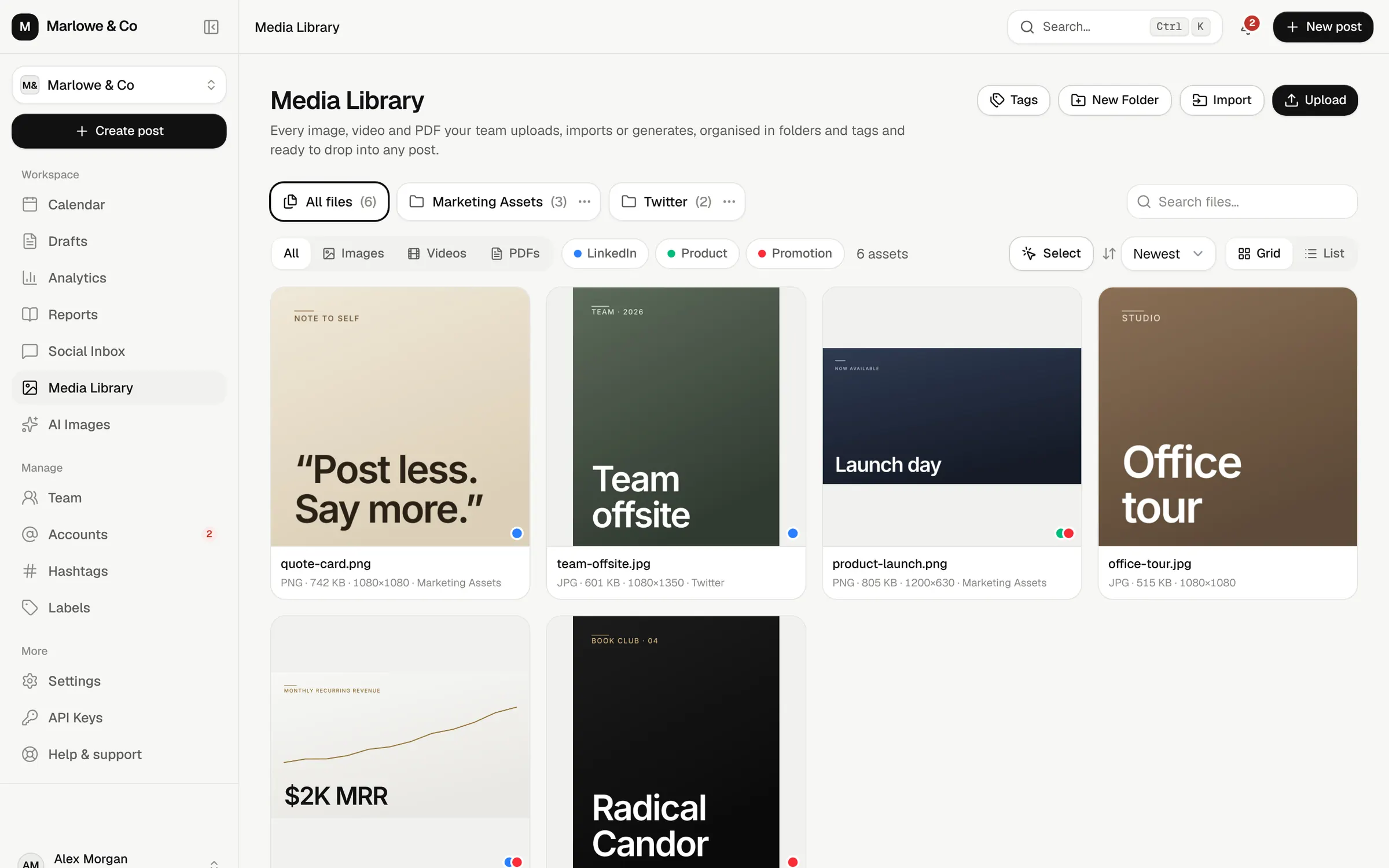
A library your whole team can use
- Folders
- Colour-coded tags
- Search, sort and filter
- Imports built in
- Create a post from assets
- Storage meter
01 · Organise
Folders for campaigns, tags for everything else
- Folders with counts
- Eight tag colours
- Multi-select to move, tag or delete
02 · Imports
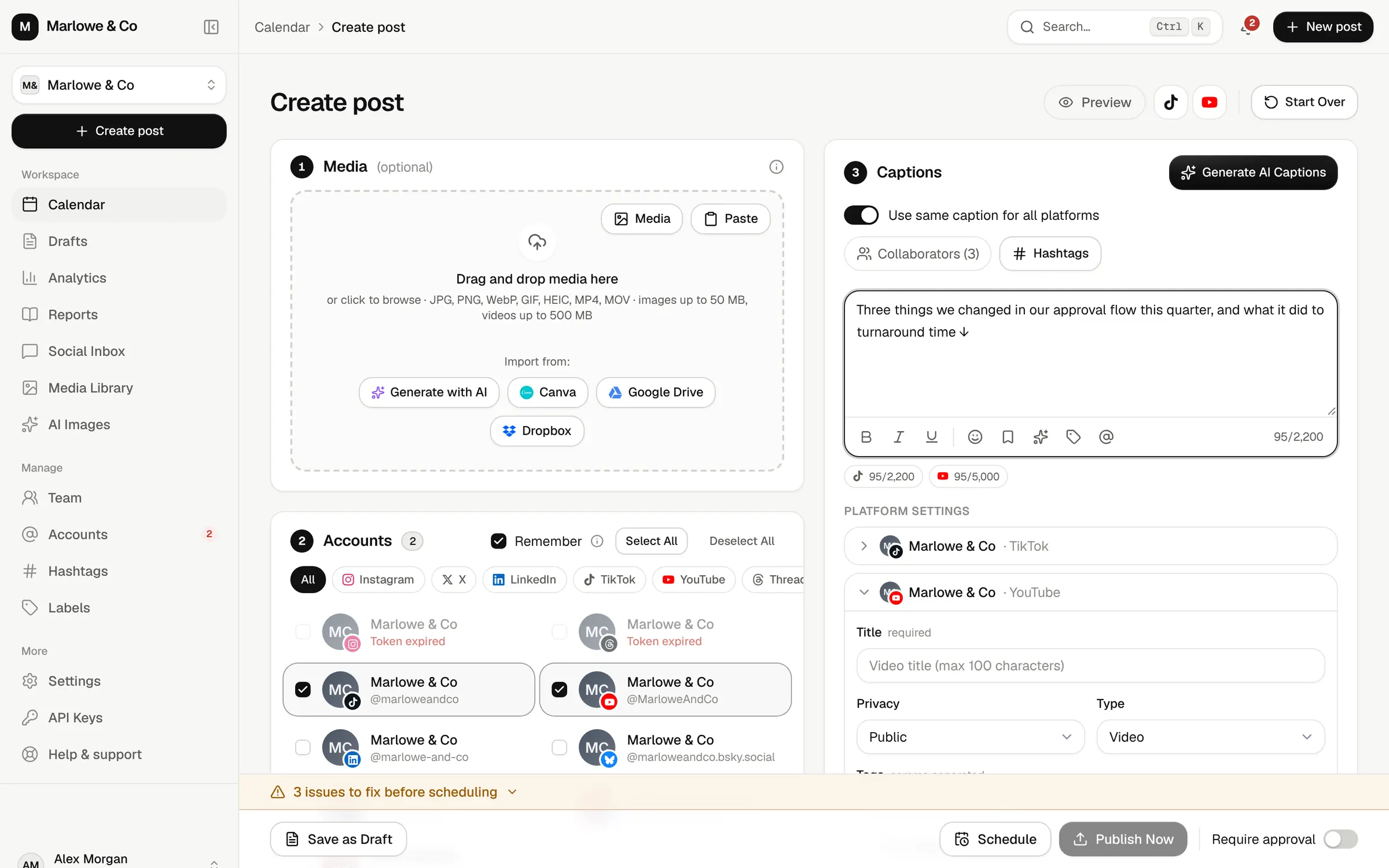
Import from where the work already lives
- Canva, Google Drive and Dropbox
- Unsplash search with attribution
- Paste from the clipboard in the composer
03 · Uploads
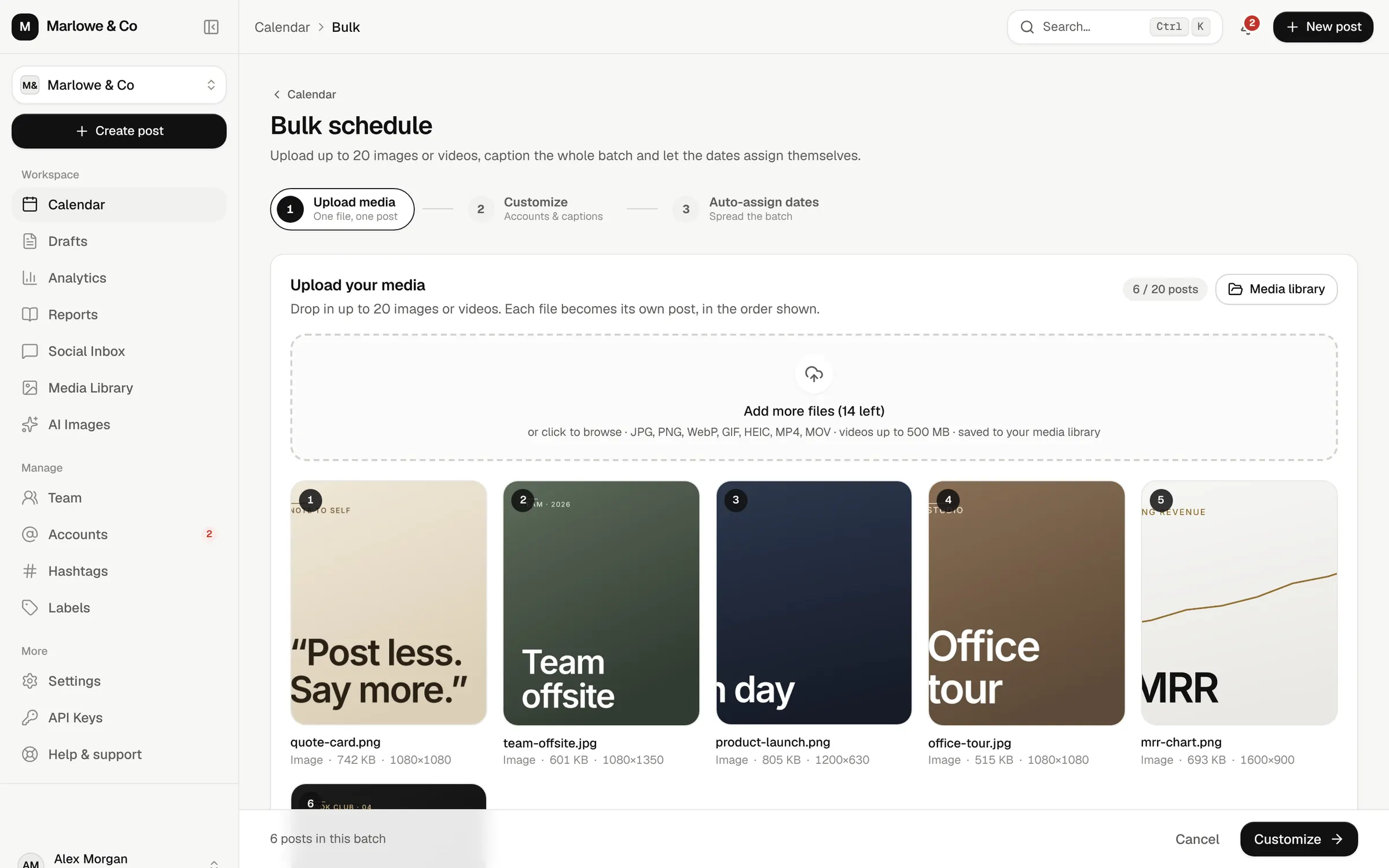
Files that are ready to post
- HEIC converted to JPEG
- Video cover thumbnails
- Clear file size limits in the uploader
Organised in 3 steps
Bring everything in
Upload files or import from Canva, Google Drive, Dropbox or Unsplash.
Sort it
Folders for campaigns, colour tags for anything that cuts across them.
Post from it
Select assets and create a post, or pick them from the composer.
Platform support
Works across all 10 platforms
- X
- TikTok
- YouTube
- Threads
- Bluesky
- Google Business
Media Library: common questions
Which file types can I upload?
How much storage do I get?
Do I need a paid Canva account?
How does Unsplash licensing work?
Can I generate images with AI?
Media Library in depth
What Media Library does
Upload, organise into folders and colour tags, and import from Canva, Google Drive, Dropbox and Unsplash. Pick a few assets and turn them into a post in one click.
- Folders: Create, rename and move files between folders, one at a time or in bulk.
- Colour-coded tags: Tag assets across folders and filter by tag in one click.
- Search, sort and filter: Images, videos or PDFs; newest, name or size; grid or list.
- Imports built in: Canva, Google Drive, Dropbox and Unsplash, without downloading first.
- Create a post from assets: Select files and open the composer with them already attached.
- Storage meter: See how much of your storage you've used.
Organise: how it works
Keep a folder per campaign or shoot, and use colour tags for the things that cut across them, like product lines or approved-for-ads. Filter by type and tag, sort by date, name or size, and switch between grid and list.
Imports: how it works
Pull designs from Canva, files from Google Drive and Dropbox, or search Unsplash for a photo, straight into the library or the composer. Unsplash attribution is handled for you.
Uploads: how it works
Upload JPEG, PNG, GIF, WebP, HEIC, MP4, MOV and PDF files. iPhone photos are converted, oversized images are scaled down and videos get a cover frame automatically.
Why a shared media library saves hours
Every social team knows the hunt: the final version is in someone's downloads folder, the approved crop is in a chat thread, and the logo is on a laptop that's at home today.
A shared library puts the files next to the calendar they're used in, so the person scheduling the post can find the asset without asking anyone.
Folders and tags, not one or the other
Folders are good for things that belong in exactly one place, like a campaign or a shoot. Tags are good for everything else: a product line, a season, a usage right. HeyOrbit gives you both.
That way a photo can live in the March shoot folder and still show up when someone filters for the linen collection.
From library to post without downloading
Importing from Canva, Drive or Dropbox means no download and re-upload step, and no wondering which copy is current.
Select a few assets and create a post from them, or start a bulk schedule and turn a whole shoot into a week of posts.
Works hand in hand with
All featuresFind the file, post the file.
Bring your assets, folders and imports into one library next to your calendar. Start free, pay per account.
Prefer to talk first? Book a call with our team
- Unlimited team members
- 10 platforms
- Start free, pay per account